





Table Of Contents:
Email signatures are an essential component of professional communication in the digital age. An email signature can serve as a virtual business card and can help establish credibility, professionalism, and brand identity. In this guide, you'll learn how to add signature to Gmail, one of the most popular email clients used by individuals and businesses worldwide.
An email signature is a block of text that appears at the end of an email message and contains information about the sender, such as their name, job title, company name, contact information, and sometimes a logo or image. An signature for gmail is used to provide important contact information and create a professional image for the sender. They can be customized to include specific branding or marketing messages and are typically automatically included in all outgoing emails.
Having an email signature is important for several reasons.
Firstly, you can add google account to your email signature as it can provide a quick and convenient way for recipients to get in touch with the sender. By including relevant contact information in the email signature, such as the sender's name, job title, company name, phone number, and website, recipients can easily find the information they need to contact the sender.
Secondly, an email signature can help establish the sender's credibility and professionalism. A well-crafted email signature with a professional design and relevant information can make a positive impression on the recipient and create a sense of trust and legitimacy.
Lastly, an email signature can serve as a branding tool for the sender or their company. By learning how to add signature in gmail, and including a logo or other branding elements in the email signature, the sender can reinforce their brand identity and promote their business or services to the recipient. Overall, having an email signature is an important aspect of professional communication and can enhance the effectiveness of email marketing and networking efforts.
How to Add a Signature in Gmail
Here is a step-by-step guide for learning how to add a signature in gmail:
1. Install Gmail and log in to your account.
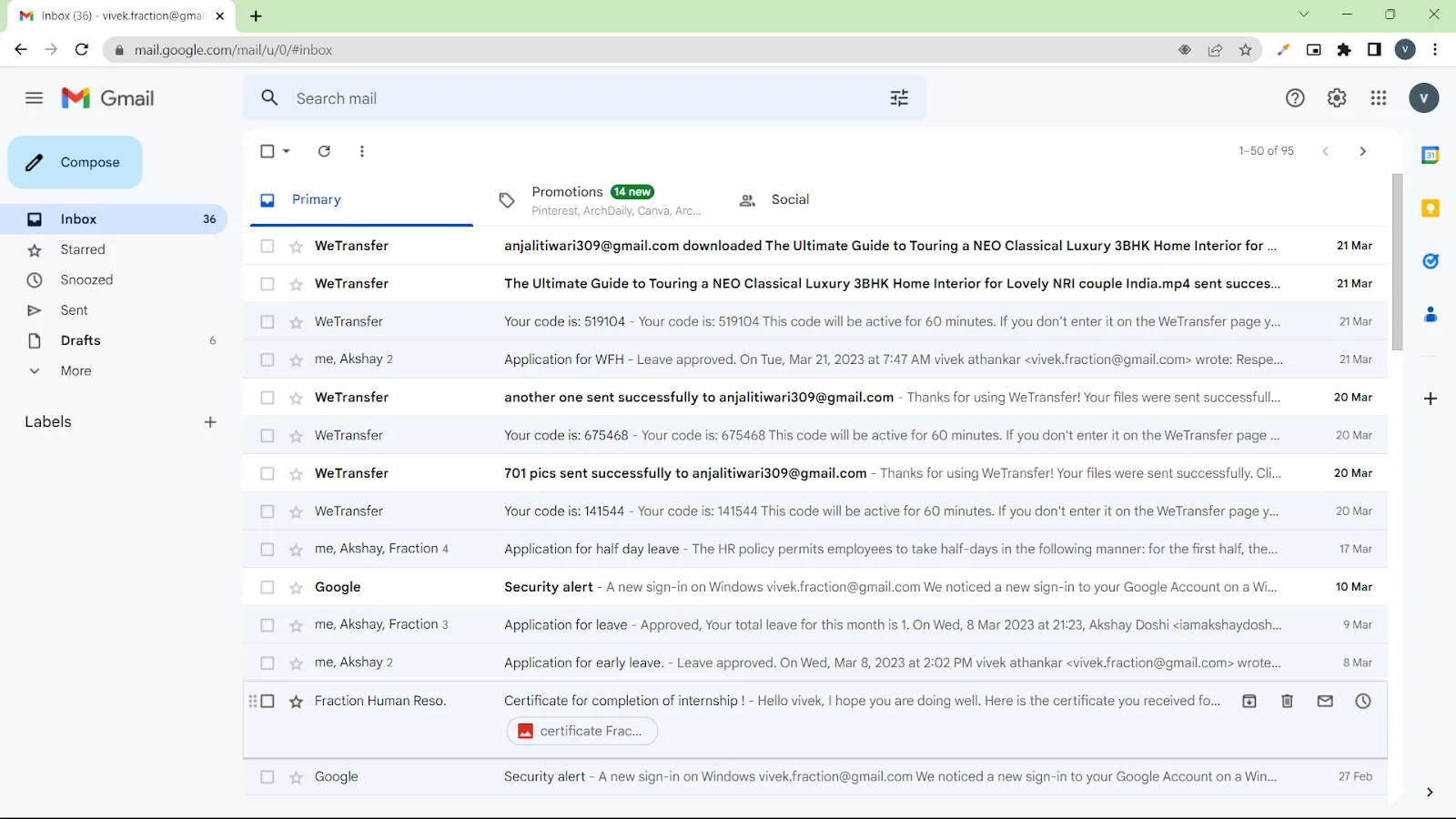
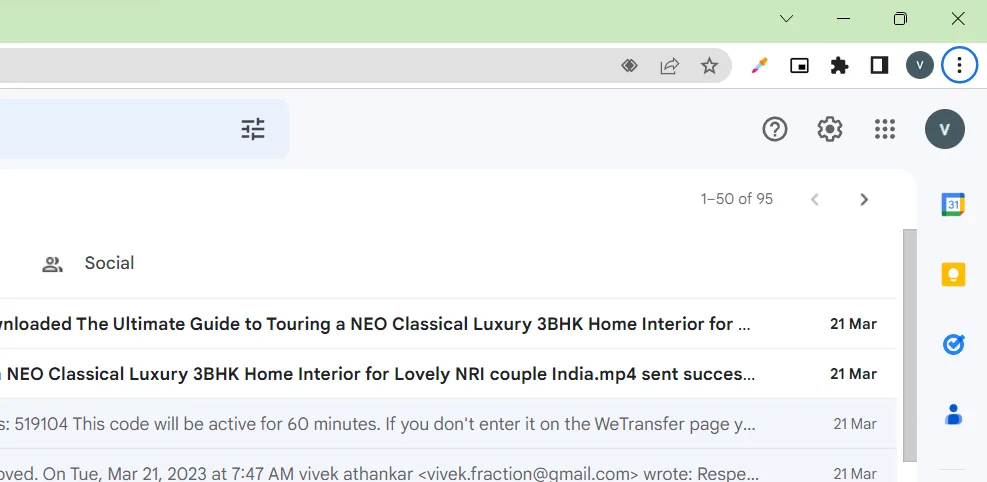
2. Click on the gear icon in the top-right corner of the screen and select "Settings" from the drop-down menu.
3. Scroll down to the "Signature" section, which is located about halfway down the page.
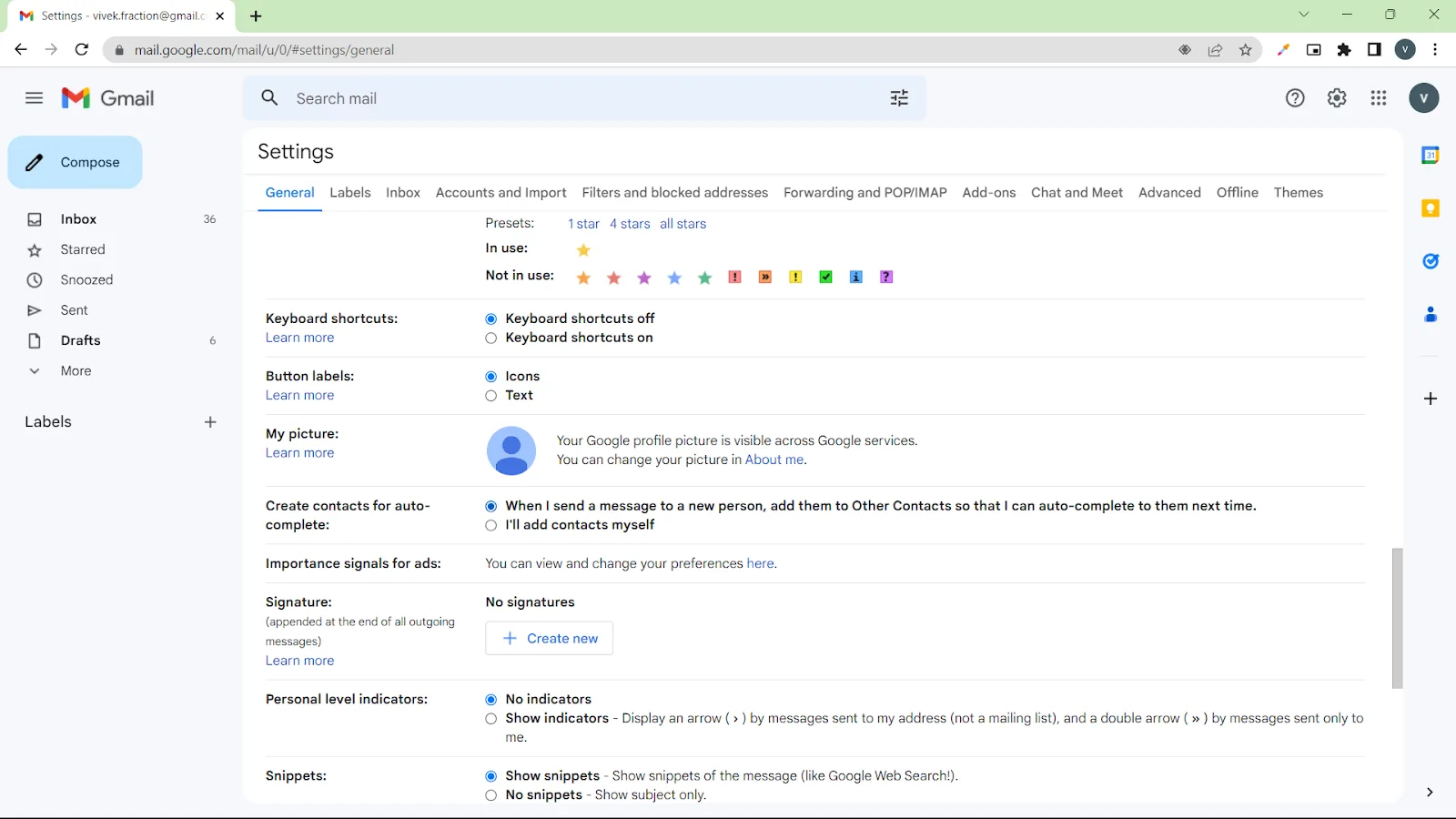
4. Choose whether you want to create a new signature or edit an existing one. To 3a new signature, click on the "Create new" button.
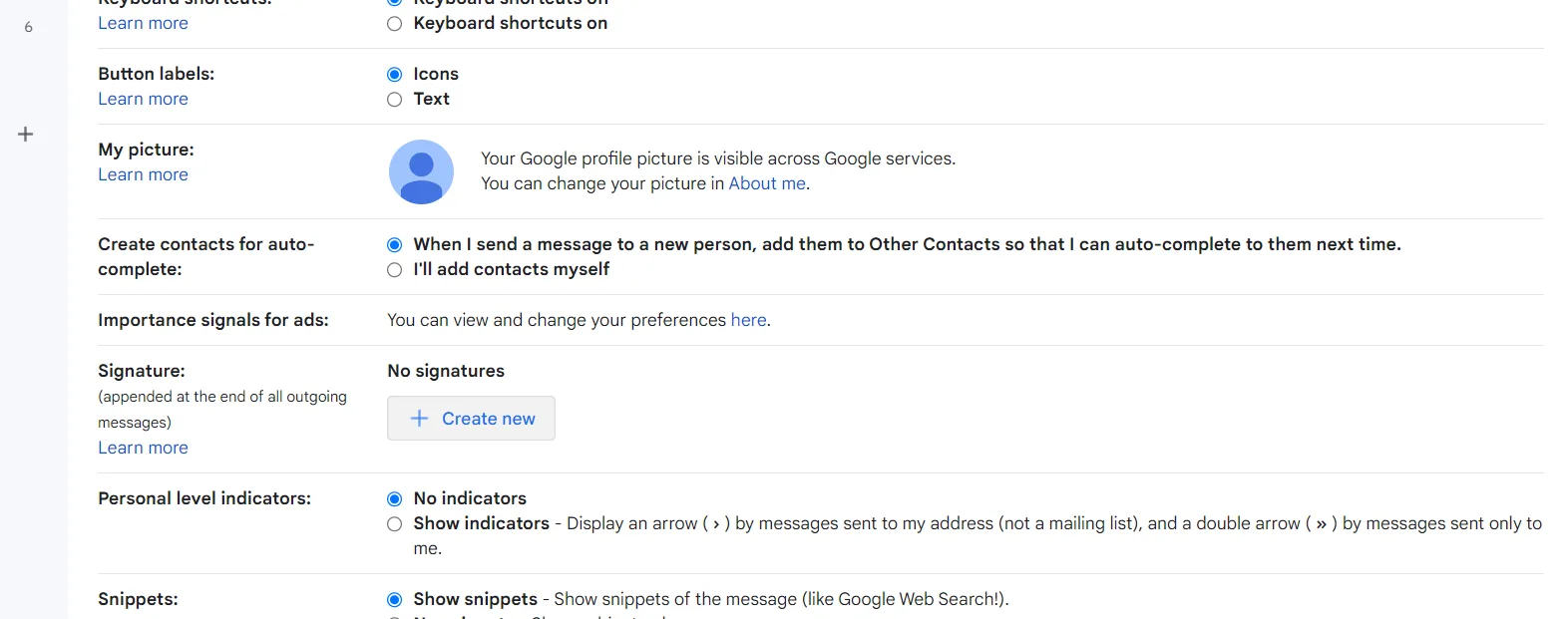
5. Type in the text you want to include in your signature. This can include your name, job title, company name, phone number, email address, website, and any other relevant information.
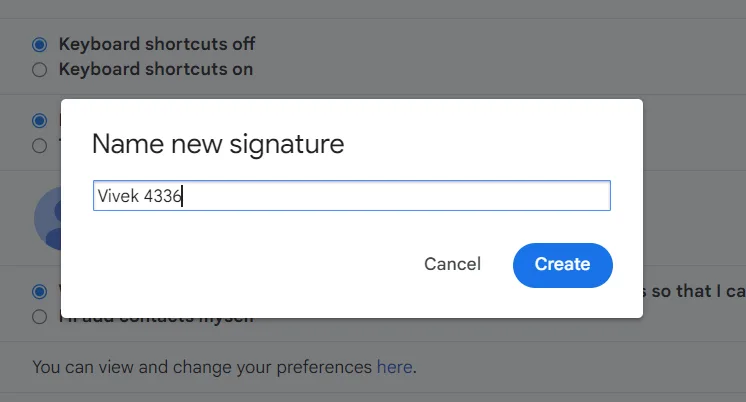
6. Format your text using the formatting tools provided by Gmail. You can choose the font, size, color, and style of your text, as well as add links, bold or italicize text, and create bullet points or numbered lists.
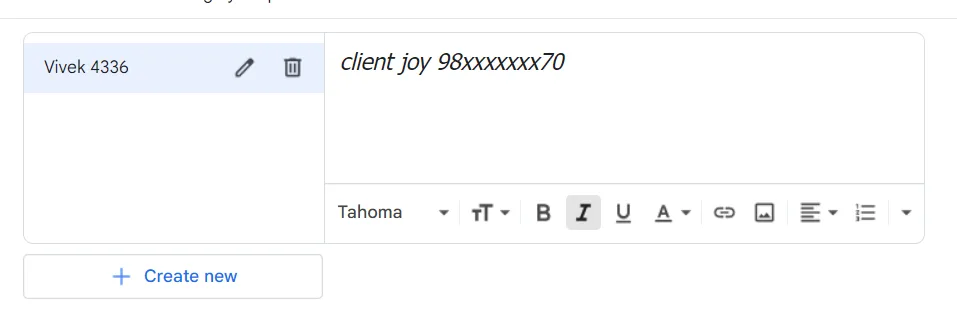
7. Add any images or logos you want to include in your signature by clicking on the "Insert Image" button. You can upload an image from your computer or insert an image from a web address.

8. Choose whether you want your signature to appear at the bottom of all outgoing messages or only on new messages by selecting the appropriate option from the drop-down menu.
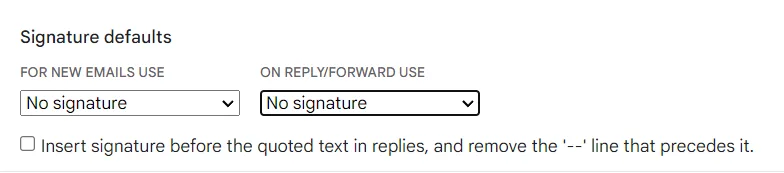
9. Click "Save Changes" at the bottom of the page to save your new signature.

Congratulations, you have now learned how to create a signature in gmail !
Note: It's important to keep in mind that Gmail only allows plain text or HTML signatures. If you want to include a more advanced signature, such as one with interactive elements, you'll need to use a third-party email signature tool.
Also, keep your signature brief and professional. Avoid using too many images or flashy elements, as these can distract from the content of your email and may not display properly on all email clients.
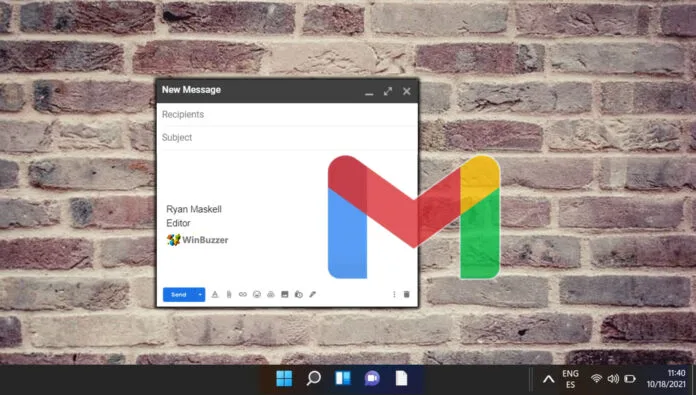
How to Add an Image to a Gmail Signature
You can add an image to your Gmail signature by following these steps:
1. First, open your Gmail account and click on the gear icon located in the top-right corner of the screen.
2. From the drop-down menu, select "Settings."
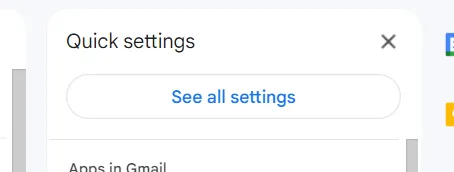
3. Scroll down to the "Signature" section and click on the "Create new" button or select the existing signature you want to edit.
4. In the signature editor, click on the "Insert Image" icon, which looks like a picture.
5. A pop-up window will appear, allowing you to either upload an image from your computer or insert a web URL to the image.
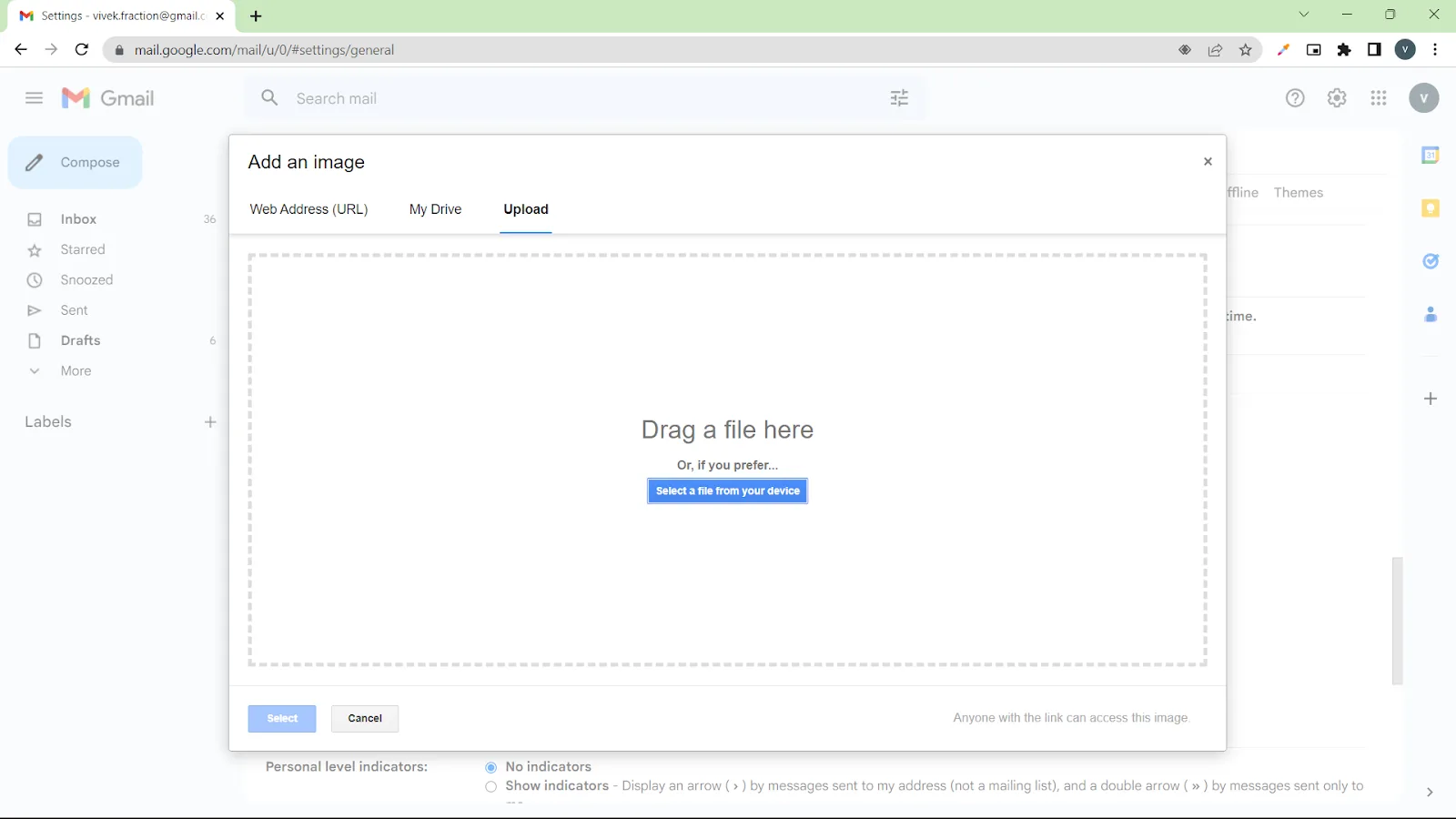
6. Once you have selected or uploaded the image, you can adjust its size, alignment, and other settings as needed. You can always change the image in gmail signature settings.
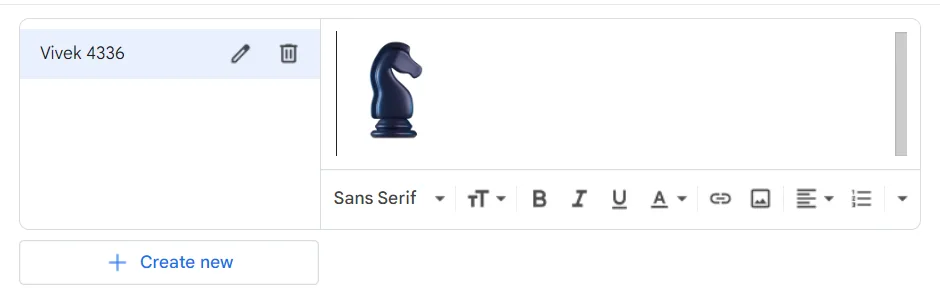
7. When you're done, scroll down to the bottom of the page and click on "Save Changes" to save your signature with the image.
That's it! Now your Gmail signature will include the image you added.
How to Add an HTML Signature to Gmail
- Create your HTML signature using your favorite HTML editor or web design tool. Make sure that it includes all the information and formatting that you want to include in your Gmail signature.
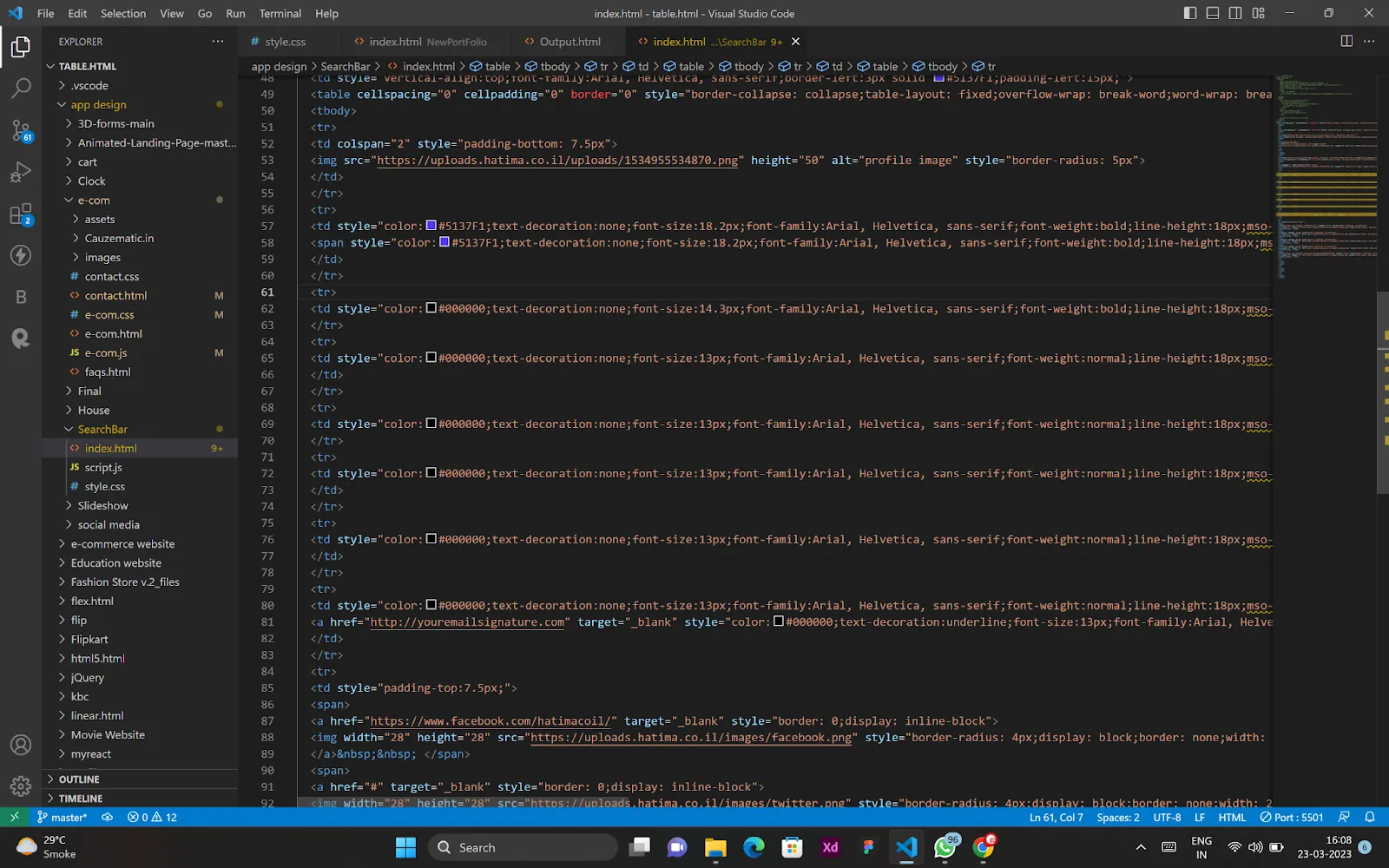
- Save the HTML file to your computer or copy the HTML code to your clipboard.
- Open your Gmail account and click on the gear icon located in the top-right corner of the screen.
- From the drop-down menu, select "Settings."
- While you are learning how to make an email signature, Scroll down to the "Signature" section and click on the "Create new" button or select the existing signature you want to edit.
- In the signature editor, click on the "Insert Signature" icon, which looks like a pencil.
- In the pop-up window, switch from the "Rich Text" editor to the "Plain Text" editor by clicking on the "Plain Text" option.
- Paste the HTML code for your signature into the text box.
- Click on "Save Changes" at the bottom of the page to save your signature with the HTML code.
- Close the settings tab, and you're done! Your new HTML signature should now be visible in all of your outgoing emails.
Note: Gmail may strip some HTML code from your signature, so it's essential to test your new signature to make sure it looks correct before using it in your emails.
How to Change Email Signature in Gmail
If you are wondering how to edit Gmail signature, you will need to follow these steps:
1. Open your Gmail account and click on the gear icon located in the top-right corner of the screen.
2. From the drop-down menu, select "Settings."
3. Scroll down to the "Signature" section and locate the signature that you want to change.
4. Edit the text or formatting of the signature as needed.
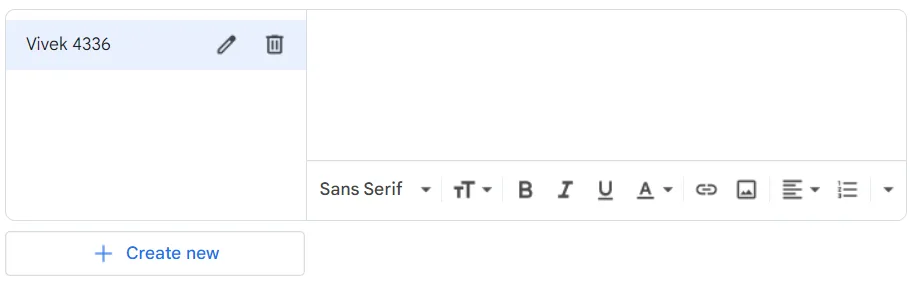
5. If you want to add an image to your signature, click on the "Insert Image" icon, which looks like a picture, and follow the steps to upload or select an image.
6. If you want to add a link to your signature, highlight the text you want to link, and click on the "Insert Link" icon, which looks like a chain link. Enter the URL you want to link to and click "OK."
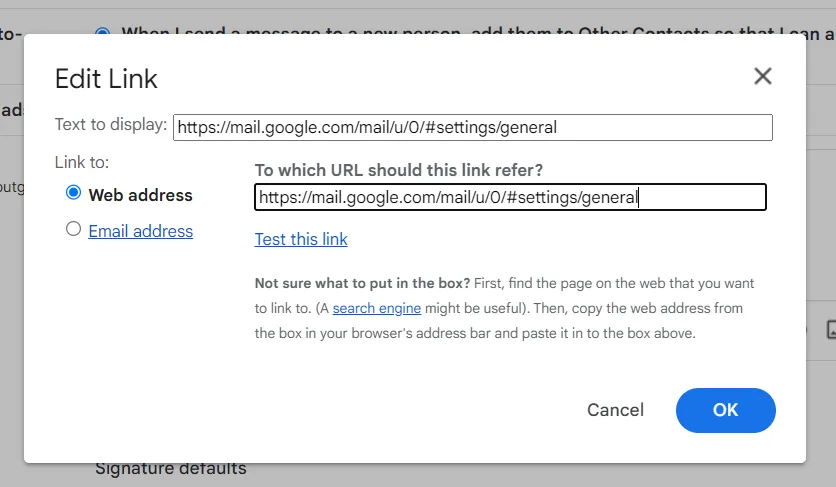
7. While learning how to change Gmail signature, remember when you're done making changes, scroll down to the bottom of the page and click on "Save Changes" to save your updated google signature.
That's it! Now you know how to change signature on Gmail. Your new signature should now be visible in all of your outgoing emails.
Why is Gmail Signature Important:
Learning how to make a signature in Gmail can help your business in several ways:
- Branding: An email signature provides an excellent opportunity to promote your brand by including your company logo, tagline, and website URL. This helps to reinforce your brand identity and increases brand awareness among your email recipients.
- Professionalism: A well-designed email signature adds a professional touch to your email communication, making you and your business appear more credible and trustworthy.
- Contact information: An email signature includes your contact information, making it easy for recipients to get in touch with you. This can be especially helpful if you're a salesperson or business owner who relies on email communication to generate leads and build relationships with customers.
- Promotions: An email signature can also be used to promote your products or services by including a call-to-action or a link to a special offer or landing page.
Overall, a gmail email signature is a powerful marketing tool that can help to increase brand awareness, establish credibility, and generate leads for your business. By including the right information in the gmail table insert and design elements, you can create an email signature that will help you achieve your business goals and stand out from the competition.
How to Add an Online payment button to your Gmail signature:
To add an online payment button to your Gmail signature, you will need to follow these steps:
- Choose a payment service that provides a button or link that you can add to your signature, such as PayPal or Stripe.
- Create an account with the payment service and set up the payment button or link you want to use.
- Copy the HTML code or URL for the payment button or link.
- Open your Gmail account and click on the gear icon located in the top-right corner of the screen.
- From the drop-down menu, select "Settings."
- Scroll down to the "Signature" section and click on the "Create new" button or select the existing signature you want to edit.
- In the signature editor, click on the "Insert Image" or "Insert Link" icon, depending on the format of your payment button.
- While learning how to create a gmail signature, If you have an image file for your payment button, select "Upload" and choose the file from your computer. If you have a link, paste the URL into the "Web address (URL)" field.
- When learning how to make email signature. If you want to link the image or text to the payment page, click on the "Insert Link" icon, which looks like a chain link. Enter the payment page URL in the "Web address (URL)" field and click "OK."
- When you're done making changes, scroll down to the bottom of the page and click on "Save Changes" to save your updated signature.
That's it! Your payment button or link should now be visible in your Gmail signature, and recipients can click on it to make a payment.
How to add a Custom button to your Gmail signature:
To add a custom button to your Gmail creation signature, you will need to follow these steps:
- Choose a graphic design tool, such as Canva or Adobe Photoshop, to create your custom button. You can also use an online button generator like Da Button Factory or Free Buttons.
- Create your custom button, choosing the color, size, and shape that you want. Make sure the button has clear text indicating what action the button represents.
- Once you have created the button, save it as an image file in a common format such as PNG or JPEG.
- Open your Gmail account and click on the gear icon located in the top-right corner of the screen.
- From the drop-down menu, select "Settings."
- Scroll down to the "Signature" section and click on the "Create new" button or select the existing signature you want to edit.
- In the signature editor, click on the "Insert Image" icon, which looks like a picture.
- Select "Upload" and choose the image file of your custom button from your computer.
- While learning how to add email signature in gmail. If you want to link the button to a website or page, highlight the button and click on the "Insert Link" icon, which looks like a chain link. Enter the URL of the website or page in the "Web address (URL)" field and click "OK."
- When you're done making changes, scroll down to the bottom of the page and click on "Save Changes" to save your updated signature.
That's it! Your custom button should now be visible in your Gmail signature, and recipients can click on it to take the action you've specified.

Some best practices for an effective Email Signature
Here are some tips and best practices for creating an effective email signature in Gmail:
- Keep it simple: Your email signature should be clean, easy to read, and not too cluttered. Avoid using too many colors, fonts, or images, which can make your signature look unprofessional.
- Include relevant information: Your email signature should include your name, job title, company name, and contact information, such as your phone number and email address. You may also want to include links to your website or social media profiles.
- Use consistent branding: While learning how to set signature in gmail If you're using your email signature to promote your business, make sure it's consistent with your brand identity. Use the same colors, fonts, and logo as your other marketing materials to create a cohesive image.
- Keep it mobile-friendly: Many people check their email on mobile devices, so make sure your signature is optimized for smaller screens. Avoid using images that are too large or complex, and use a legible font size.
- Test your signature: Before using your new email signature, send a test message to yourself and a few friends or colleagues to make sure it looks good on different devices and email clients.
- Update your signature regularly: while learning how to add signature to email you should remember If your contact information or job title changes, make sure to update your email signature accordingly. This will help ensure that recipients have the most up-to-date information about you.
- Design Elements: When creating an email signature, it's important to consider the design elements such as font, color, and spacing. The signature should be visually appealing, easy to read, and consistent with your branding.
- Social Media: Including links to your social media profiles in your email signature is a great way to increase your social media following and promote your online presence.
- Legal Requirements: Keep in mind when you are learning how to edit signature in gmail, there are legal requirements that you need to comply with when creating an email signature. For instance, under the CAN-SPAM Act, you need to include a valid physical address in your signature.
- Consistency: It's important to ensure that your email signature is consistent across all your email accounts and that it's updated regularly with any changes in your contact information or branding.
By following these tips, you know how to create signature in gmail that will enhance your communication and help you make a positive impression on your recipients.
Final Thoughts
Creating an email signature in Gmail is a quick and easy way to add a professional touch to your outgoing emails. By including relevant contact information and branding elements, you can make it easier for recipients to get in touch with you and reinforce your brand identity. In this guide, we've provided a step-by-step process for creating an email signature in Gmail, as well as some tips and best practices for making the most of your signature. By following these guidelines, you can create an effective and visually appealing email signature that will help you communicate with confidence and professionalism.
Having an email signature is important for several reasons. Firstly, it helps to establish a professional image and promotes your personal or company branding. Secondly, it provides important contact information that recipients can use to get in touch with you easily. Thirdly, it saves time by automatically including information such as your name, job title, and contact details in every email you send. Lastly, it helps to ensure that your emails are compliant with legal requirements such as CAN-SPAM Act, which requires that all commercial emails have a valid physical address. Overall, having an email signature is a simple and effective way to enhance your email communication and make a positive impression on your recipients.
If you haven't created an email signature yet, we highly encourage you to do so. Creating an email signature is a simple and effective way to enhance your email communication and make a positive impression on your recipients. It provides important contact information that recipients can use to get in touch with you easily and promotes your personal or company branding. By following the step-by-step guide and best practices outlined in this article, you can easily create an effective and professional email signature in Gmail. Don't miss out on the opportunity to make a great impression with every email you send. Take a few minutes today to create your own email signature and start communicating with confidence and professionalism.




.webp)